Workflow Comparison
This page maps your EE-Sim workflows to their Power Studio Designer equivalents. The same tasks are all possible — some are even easier.
Finding a Part
EE-Sim: Solution Finder validates your requirements and ranks ICs by efficiency, size, and cost.
Power Studio Designer: The Library serves the same purpose.
- Navigate to the Library tab
- Enter your requirements: Vin (min/nom/max), Vout, Iout
- Filter by topology, integration type, function
- Use the Design Criteria sliders to filter by efficiency, BOM cost, and area
- Each solution card shows a schematic preview, efficiency percentage, and board area
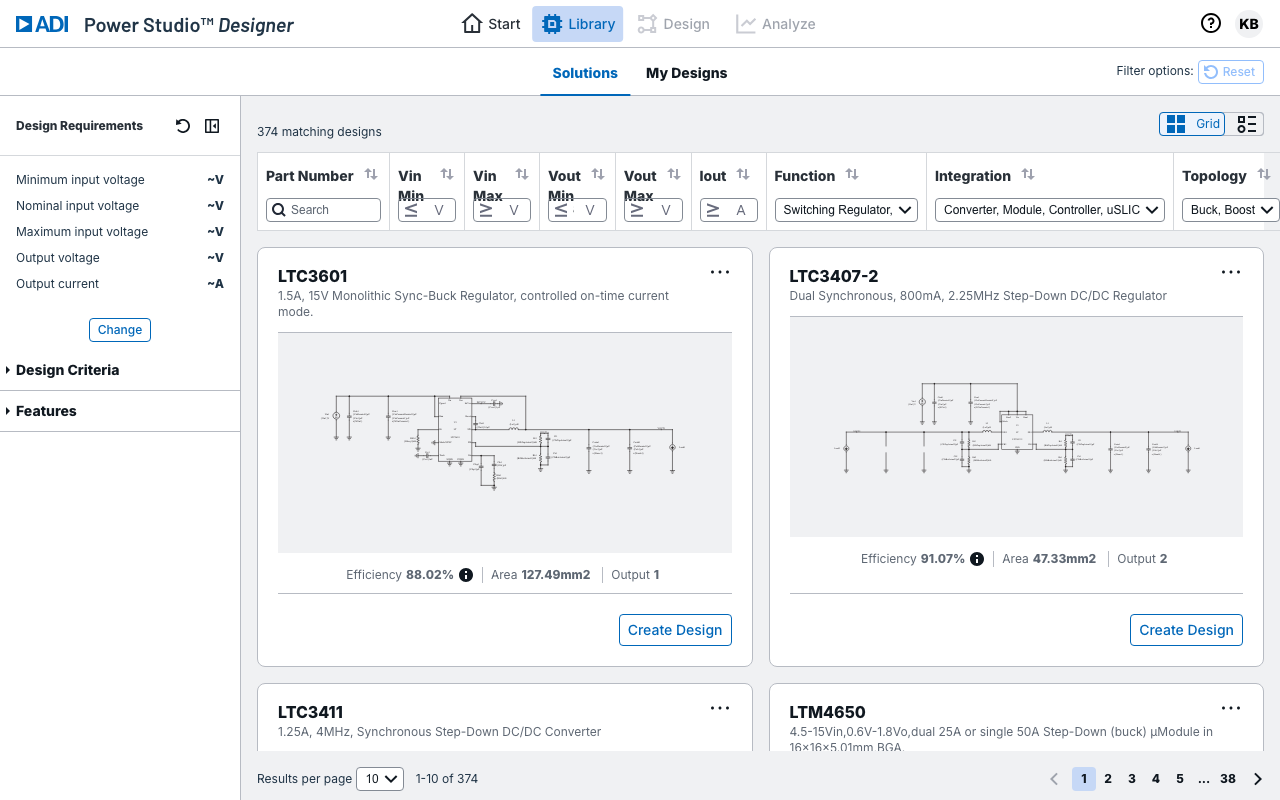
The library contains 374+ validated solutions across the unified Maxim and LT catalog. Results update as you adjust requirements. Toggle between grid and table views.
Creating a Design
EE-Sim: Enter Vin, Vout, Iout. Tool generates a single complete schematic with auto-selected components.
Power Studio Designer: The same requirements-driven workflow is available — enter your specs and Power Studio Designer generates a complete schematic with selected components. The difference is the engine and the result:
- A unified design engine — a hybrid of the EE-Sim and LTpowerCAD approaches — produces fast, accurate solutions
- Rather than a single result, Power Studio Designer generates multiple valid designs across acceptable parts, so you can compare options and pick the one that best fits your priorities
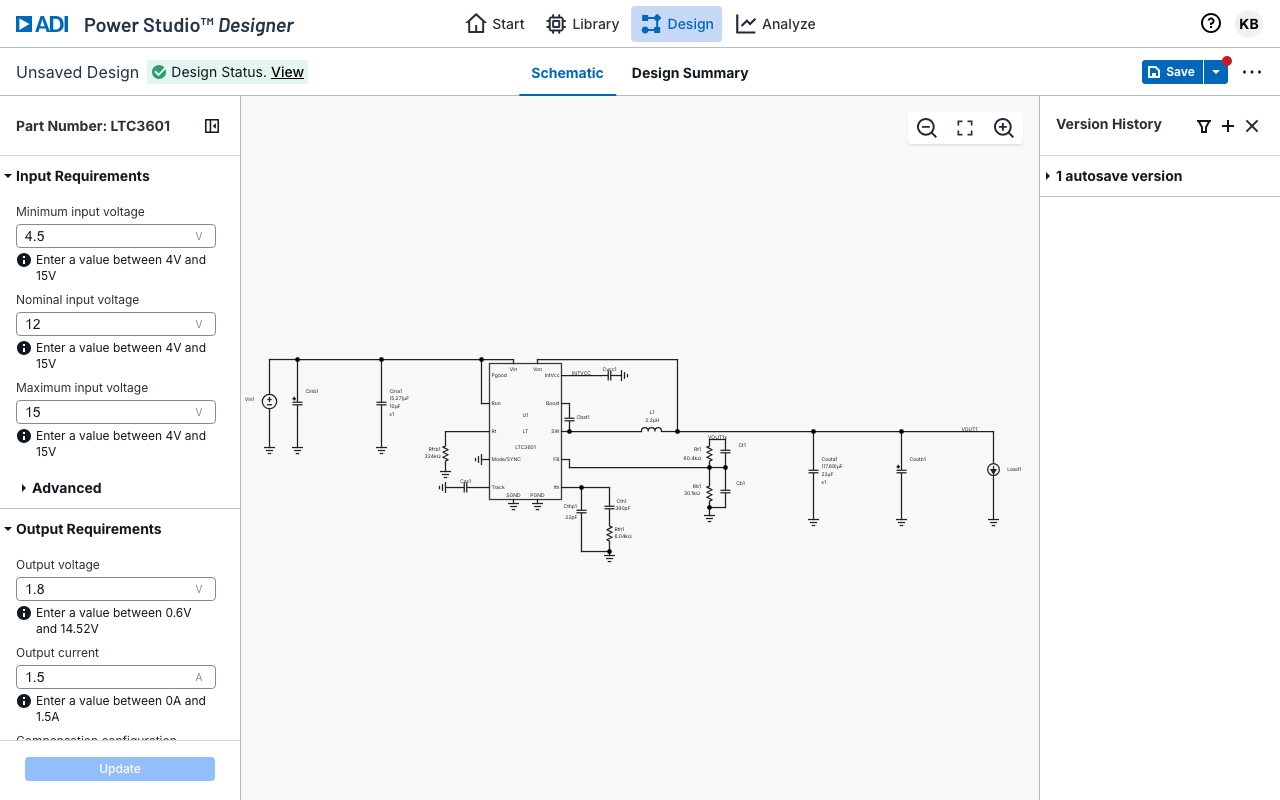
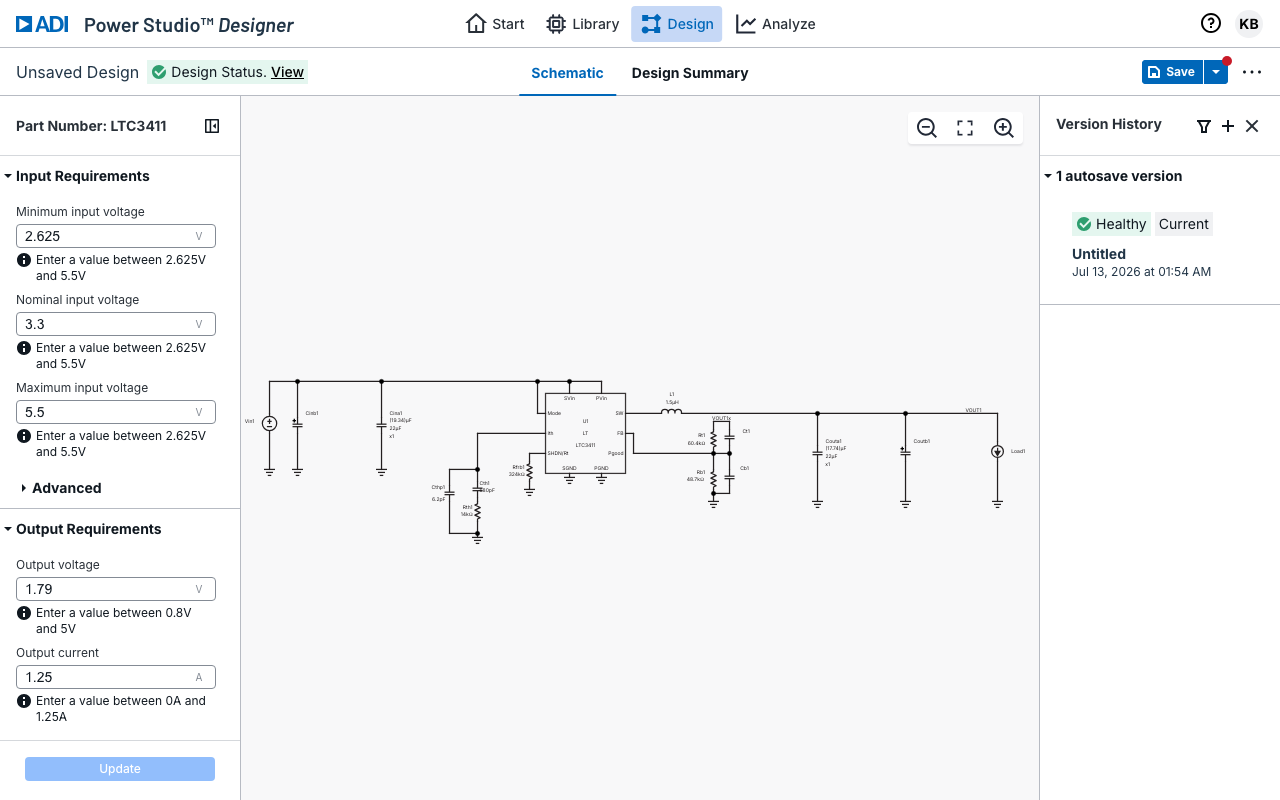
The Design Requirements sidebar (shown on the left) gives you full control:
- Input voltage (Minimum, Nominal, Maximum)
- Output voltage and current
- Voltage ripple targets
- Load transient parameters
- Switching frequency
- Ambient temperature
- Design priority (Balanced, Efficiency, or Size)
- BOM cost priority
Click Update to propagate changes. The schematic, component recommendations, and analysis results all update accordingly.
Working with the Schematic
EE-Sim: View schematic online (limited editing) or use OASIS desktop for full editing.
Power Studio Designer: The schematic editor is interactive and web-based:
- Full circuit visualization with all components, connections, and values
- Click any component to open its selection panel — browse alternatives filtered by your design's requirements
- Smart recommendations account for ripple current, saturation current, thermal limits, and package size
- Changes to components update performance metrics in real time
- Design Status indicator confirms your design is healthy and provides recommendations for design optimizations
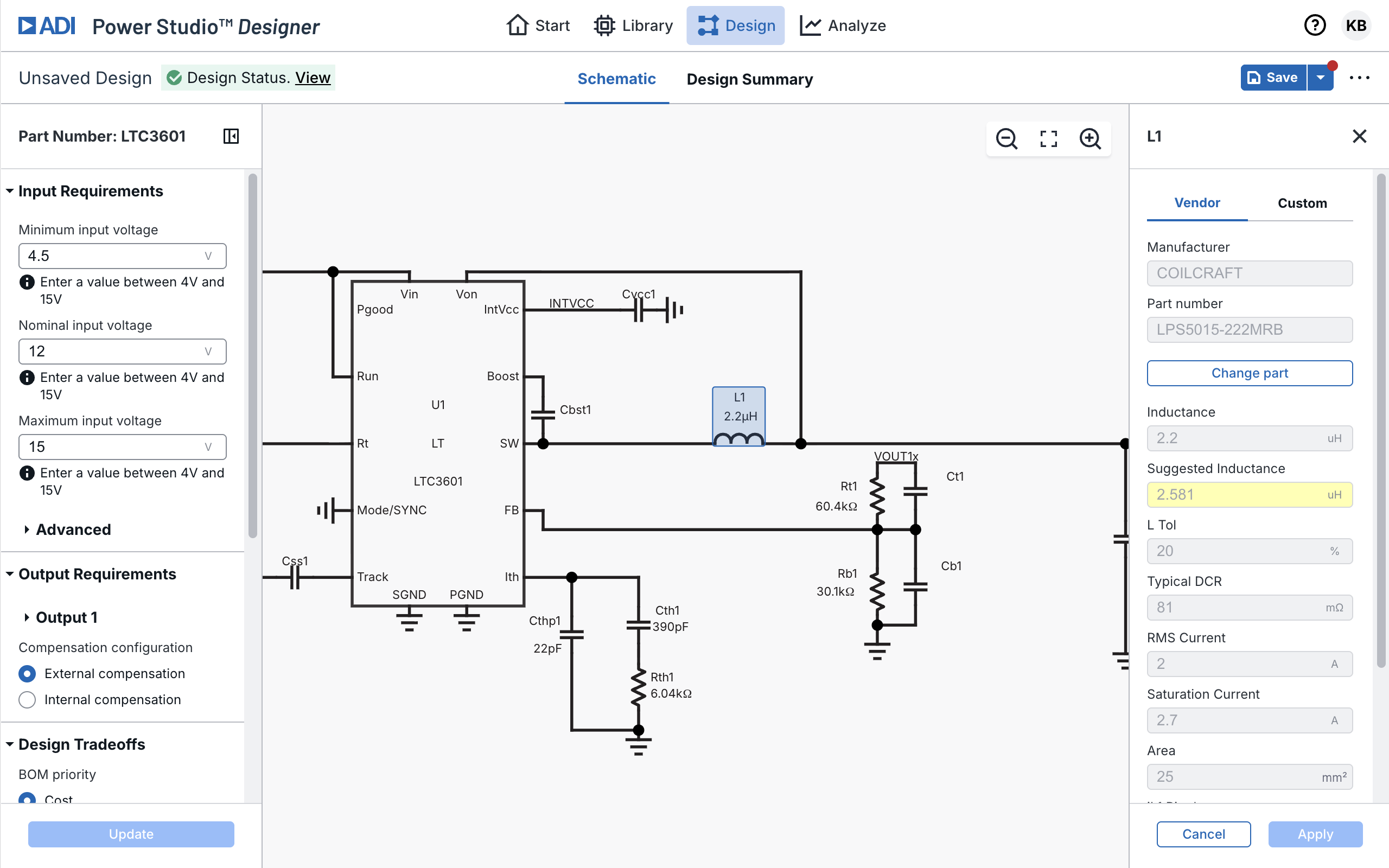
For advanced schematic editing (adding arbitrary components, wire routing, custom circuits), export to LTspice.
Analyzing Efficiency
EE-Sim: Run "Efficiency vs Load" simulation. View single efficiency curve. Wait for results.
Power Studio Designer: Navigate to Analyze > Efficiency and Loss. Results appear instantly — no simulation run required.
What you get:
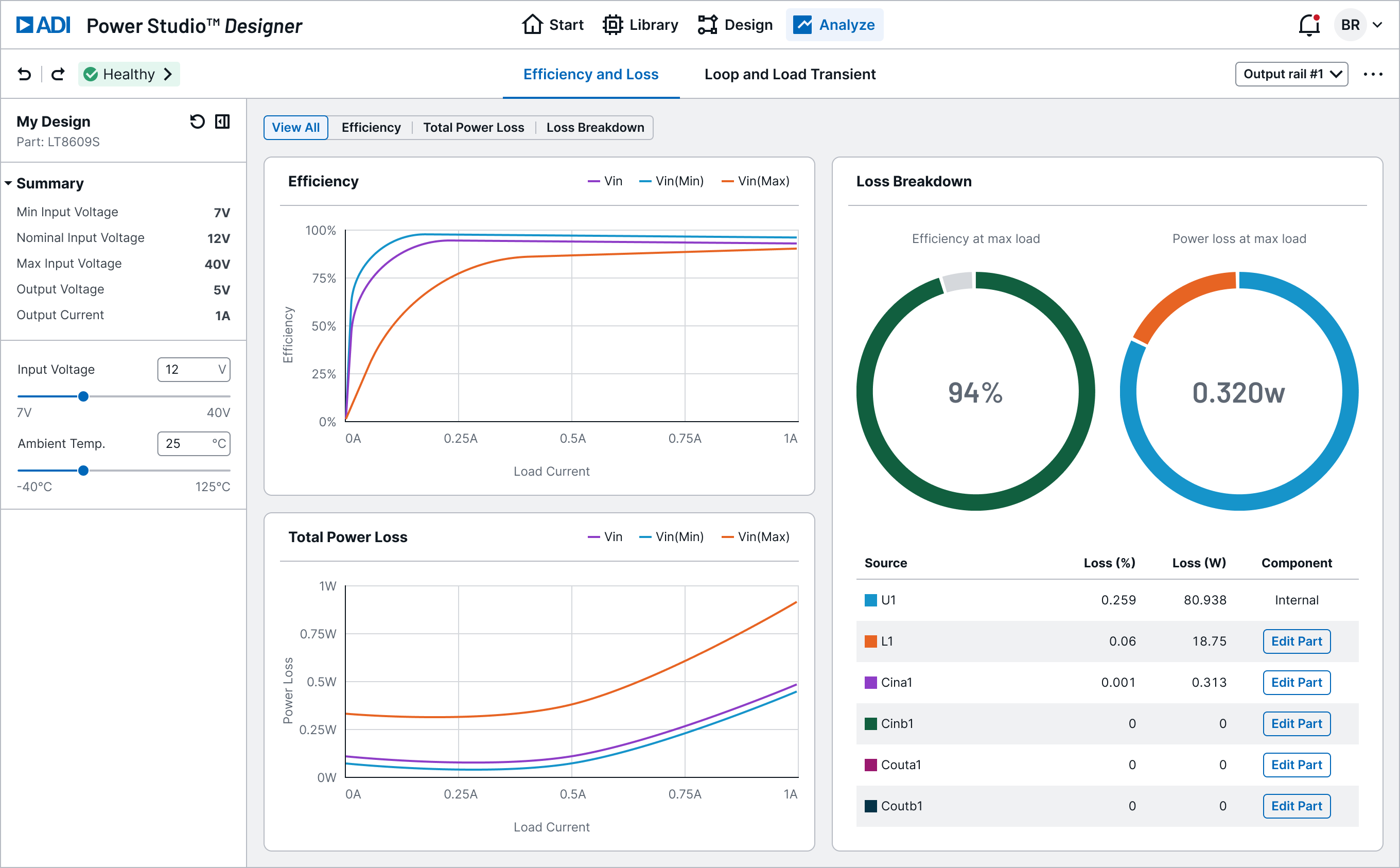
- Efficiency vs Load chart — three curves plotted simultaneously for Vin(Min), Vin(Nominal), and Vin(Max)
- Total Power Loss vs Load chart — same three Vin variants
- Loss Breakdown panel — donut charts showing efficiency and loss at max load, plus a per-component loss table with an Edit part button for direct component swapping
- Parametric sliders — adjust input voltage or ambient temperature (-40°C to 125°C); charts update live
No need to re-run simulations for each operating condition.
Checking Loop Stability
EE-Sim: Run frequency domain simulation to generate Bode plot. Run load transient simulation for step response.
Power Studio Designer: Navigate to Analyze > Loop and Load Transient.
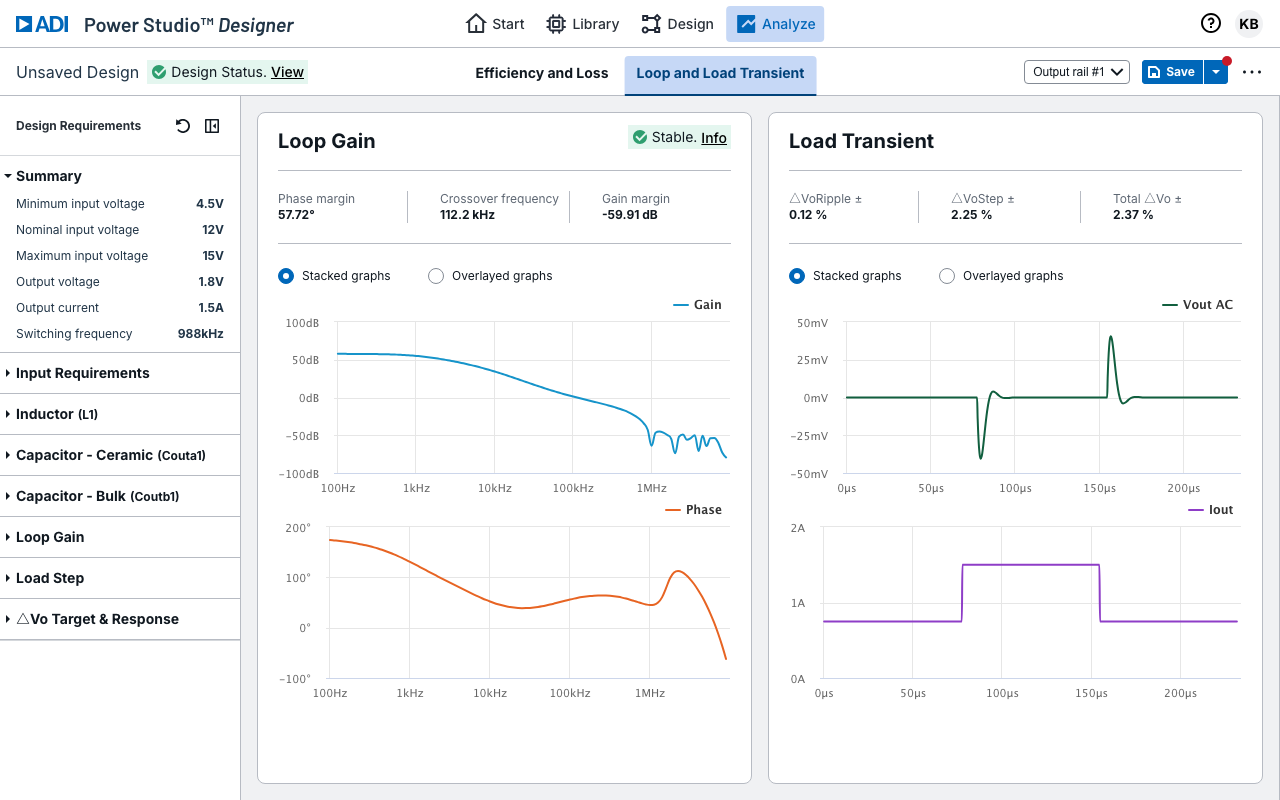
Bode plot:
- Gain (dB) and phase (degrees) vs frequency
- Phase margin, gain margin, and crossover frequency displayed
- info link shows detailed stability analysis
Load transient:
- Output voltage response to a load current step
- Overshoot, undershoot, and settling time visible
Load step parameters are configurable in the Design Requirements sidebar.
Exporting BOM
EE-Sim: Export Bill of Materials with manufacturer, part number, and quantity.
Power Studio Designer: Select Export > BOM from the design view. The exported BOM (CSV or Excel) includes:
| Field | Description |
|---|---|
| Reference | Component designator (L1, C1, R1) |
| Part Number | Manufacturer part number |
| Manufacturer | Component manufacturer |
| Value | Nominal value (4.7 uH, 22 uF) |
| Key Specs | Voltage rating, DCR, ESR, package |
| Quantity | Number required |
Note
Support / Configuration components are not yet supported in Power Studio Designer. For imported EE-Sim designs, this data has been preserved and will be included once support for these components is enabled.
Running Simulations
EE-Sim: Up to 6 simulation types run inline using SIMPLIS. Results appear in the Webscope waveform viewer.
Power Studio Designer takes a different approach:
Built-in analytical engine handles the most common analyses instantly:
- Steady-state efficiency and power loss
- Frequency domain (Bode plot, phase/gain margin)
- Load transient response
No simulation run needed — results compute on demand and update live when you change parameters.
For advanced simulation, export your design:
| Target | Best For | Advanced Analysis |
|---|---|---|
| LTspice | Offline simulation for LT and ADI parts | Startup transient, fault conditions, Monte Carlo, temperature sweeps, noise analysis |
| SIMPLIS/OASIS | Offline simulation for Maxim parts | Fast switching simulation with piecewise-linear models, periodic operating point, AC/loop analysis |
The export includes the complete netlist, component values, IC model, and suggested simulation configuration.
Note
Online simulation with LTspice and SIMPLIS directly in Power Studio Designer is a planned feature. Today, export your design to run these simulations offline.
Saving and Versioning
EE-Sim: Cloud-based save, track changes, compare design versions, share via link/email/team.
Power Studio Designer:
- Save — Save button with dropdown (Save, Save As)
- Version History — Panel showing saved versions with restore controls
- My Designs — Tab in the Library showing all your saved designs
- Sharing — Secure cloud-based sharing workflow rather than insecurely emailing designs
- Cloud Storage — Designs stored in secure, encrypted cloud storage
Summary
| Workflow | EE-Sim | Power Studio Designer |
|---|---|---|
| Find a part | Solution Finder | Library (374+ solutions) |
| Create design | Auto-generate from requirements | Generate multiple designs from requirements, choose best fit |
| Edit schematic | OASIS desktop or limited web | Interactive web editor |
| Analyze efficiency | Run simulation, wait | Instant results with parametric sliders |
| Check loop stability | Run Bode simulation | Built-in Bode + load transient |
| Export BOM | Export CSV | Export CSV/Excel |
| Advanced simulation | Online SIMPLIS | Export to LTspice or SIMPLIS/OASIS |
| Save/version | Cloud save + compare | Cloud save + save & restore version history |